
Quick Answer Box
Last verified: 17 October 2026 | Reviewed by: 666D Official Team
- Open the official 666D app or website.
- Tap on 666d login button.
- Enter your registered Pakistani mobile number.
- Type your password (or request OTP if the option appears).
- Complete any verification, and you will reach the dashboard.
Works on Android app, iPhone (Safari web shortcut), and PC browser. Always use links verified on this website only.
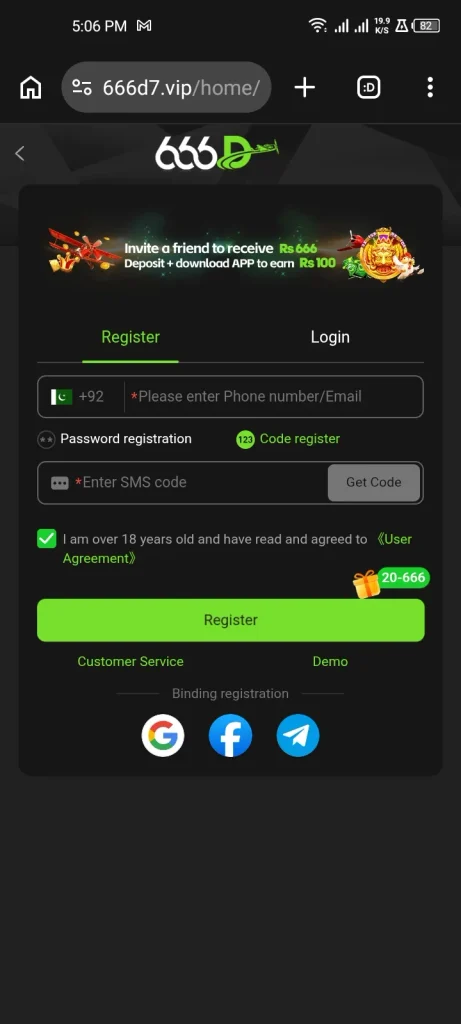
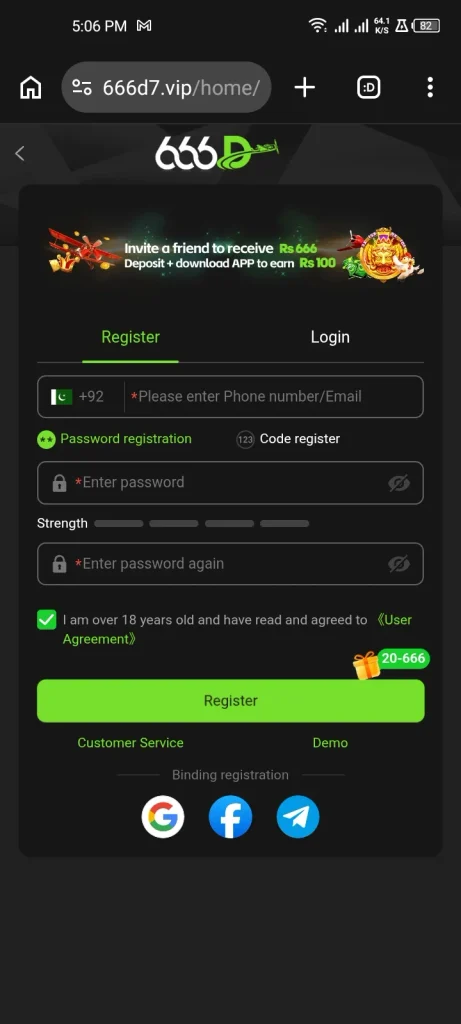
Official 666D Login Links Only – How to Verify?
To use 666d login, always use the official links to log in to your account. Never trust random links sent on WhatsApp, Telegram, SMS, or Facebook.
How to verify a link:
- Firstly, go to the official website of the game.
- Check the exact spelling of the link
- Look for HTTPS (padlock icon).
If someone sends you a login link in a message, ignore it and open this page instead.
Which Login Method Should You Use? Password vs OTP
| Method | Best For | Speed | Security Level | Notes |
|---|---|---|---|---|
| Password | Daily regular login | Fastest | Good | Use a unique strong password |
| OTP | New device or extra safety | Slightly slower | Higher | Recommended on shared phones or public Wi-Fi |
Most users log in with a mobile number + password. Use OTP for extra verification on new devices or after failed attempts.
Login vs Register – Which One Do You Need?
- Already have an account? → Use Login.
- New user? → First Register, then Login.
If you enter a number that is not registered, the app will usually show “Number not registered” or “Account does not exist”. In that case, go to the Register option first. Many other websites mix Login and Register steps and confuse users. Here we keep them separate.
Before You Log In – Checklist
- Stable internet (Wi-Fi or good 4G/5G signal)
- Correct registered mobile number (the one used at registration)
- Latest version of the app (or clear app cache)
- Enough phone storage and battery
- Avoid VPN if you face login problems
- Keep screenshots ready if you need to contact support later
Completing this short checklist saves you from most common login issues.
666D Login Step by Step
Android App
- Open the 666D app on your phone.
- On the welcome screen, tap Login.
- Enter your registered Pakistani mobile number (example: 03XXXXXXXXX).
- Enter your password carefully (passwords are case-sensitive).
- Tap Login or Submit.
- If an OTP is requested, enter the code received by SMS.
- You will reach the main dashboard.
iPhone (Safari Web Shortcut)
- Open Safari and go to the official 666D website.
- Tap the Share icon at the bottom.
- Choose Add to Home Screen.
- Open the new icon from your home screen.
- Tap Login and enter the same mobile number and password you use on Android.
- Complete the OTP if asked.
PC (Chrome or Edge)
- Open Google Chrome or Microsoft Edge.
- Type the official website address and press Enter.
- Click the Login button.
- Enter your registered mobile number and password.
- Complete OTP verification if requested.
- You can now manage your account on the larger screen.
Login OTP Not Arriving – Fixes by Network
| Network | Common Causes | Quick Fixes |
|---|---|---|
| Jazz | Weak signal or SMS delay | Check signal bars, wait 2–3 minutes, restart phone |
| Zong | Dual SIM or network congestion | Use primary SIM, turn Airplane mode on/off |
| Telenor | High traffic periods | Wait 5 minutes and request a new OTP |
| Ufone | Full inbox or SMS settings | Clear old messages, check spam, restart phone |
Extra tips that work for all networks:
- Make sure you typed the correct number.
- Wait at least 60–90 seconds before requesting another OTP.
- Switch between Wi-Fi and mobile data.
- Restart the phone once.
Forgot Your Password?
Reset by OTP
- On the login screen, tap Forgot Password.
- Enter your registered mobile number.
- Tap Send OTP.
- Enter the code received by SMS.
- Create a new strong password and confirm it.
- Log in with the new password.
What to Do If You Lost or Changed Your SIM or Number
If you no longer have access to the original number:
- Contact official support immediately.
- Provide the old number, approximate registration date, and any transaction IDs if possible.
- Support may ask for additional verification.
- The process can take time — be patient and only use official channels.
Never share your OTP or password with anyone claiming to be support.
Login Error Decoder
| Error Message | Likely Cause | Fix |
|---|---|---|
| Wrong password | Typing mistake or Caps Lock | Re-type carefully or use Forgot Password |
| Number not registered | New user or wrong number typed | Go to Register or check the number |
| OTP expired | Took too long to enter | Request a new OTP |
| Too many attempts | Multiple wrong tries | Wait 15–30 minutes and try again |
| Network error | Internet problem | Switch Wi-Fi / mobile data or restart router |
| Account does not exist | Number never registered | Create a new account |
| Invalid OTP | Wrong code or delayed SMS | Request a new OTP and enter it carefully |
Account Locked or Temporarily Restricted
After several wrong password or OTP attempts, the system may temporarily lock the account for security.
- Usually lasts 15–60 minutes.
- Wait patiently and try again later.
- If the lock continues for a long time, contact support with your number and screenshots.
Do not keep trying repeatedly — it can make the restriction longer.
Logged Out Suddenly or Logged In on Two Devices
Common reasons:
- You logged in on another phone or PC.
- App update or security check.
- Session expired after long inactivity.
What to do:
- Log in again with the correct details.
- If you did not log in from another device, change your password immediately.
- On shared devices, always log out when finished.
Login Page or Link Not Opening
- Clear browser cache and cookies.
- Try a different browser (Chrome, Edge, or Firefox).
- Switch between Wi-Fi and mobile data.
- Disable any VPN temporarily.
If the problem continues, note the exact error and contact support.
Secure Your Account After Login
- Logging out on shared devices: Always log out when using someone else’s phone or public computer.
- Unique password: Never reuse the same password you use for email, JazzCash, or EasyPaisa.
- Notification settings: Turn on login alerts if available in the app.
- Recent activity: Check if the app shows recent devices or login history and log out unknown sessions.
Login After App Update, Reinstall, or New Device
After updating or reinstalling the app, you may need to enter your password or OTP again. This is normal.
On a completely new device, the system often asks for an OTP for extra security. Use the same registered number and password. Clear the cache only if the app is not opening properly.
Why Withdrawal Verification May Be Asked After Login?
Sometimes after login, especially before the first withdrawal or after a long time, the system asks for extra verification. This is a security step to protect your money.
Prepare:
- Clear screenshots of the request
- Your registered number
- Any recent transaction IDs
Complete the verification only through the official app or website.
Is 666D Legal and Halal in Pakistan?
This website provides technical and practical information only. We cannot give legal or religious advice.
Whether online gaming platforms are legal or considered halal is a personal and complex matter. Please consult a qualified lawyer for legal questions and a trusted Islamic scholar for religious guidance before using any such platform.
Responsible Play Before You Sign In
- You must be 18 years or older.
- Set a clear budget and time limit before you start.
- Never use money that you need for daily expenses.
- Take regular breaks.
- If you feel you are playing too much, seek help from family or professional resources.
Play only for entertainment and within your limits.
How to Contact Support – What to Send
Checklist before contacting support:
- Your registered mobile number
- Exact screenshot of the error or problem
- Device model and Android / iOS version
- Approximate date and time of the issue
- Transaction ID (if related to deposit or withdrawal)
English message template:
Assalam o Alaikum,
I am facing a login problem.
My registered number is: 03XXXXXXXXX
Error message/screenshot: attach the screenshot.
Device: [e.g., Samsung A14, Android 14]
Time of issue: [date and time]
Please help me resolve it.
Thank you.
Roman Urdu template:
Assalam o Alaikum,
Mujhe login mein problem aa rahi hai.
Mera registered number: 03XXXXXXXXX
Error message/screenshot: [attach]
Device: [e.g. Samsung A14, Android 14]
Masla kab aya: [date and time]
Barah-e-karam madad karein.
Shukriya.
666D Login in Roman Urdu
Jaldi se login karne ka tareeqa:
- Official 666D app kholen.
- Login button dabain.
- Apna registered mobile number likhen.
- Password enter karein.
- Agar OTP aaye to wo daal dein.
- Dashboard khul jayega.
OTP nahi aa raha?
Signal check karein, phone restart karein, 2–3 minute wait karein, phir dobara OTP mangain. Jazz, Zong, Telenor, Ufone sab pe yeh tips kaam karti hain.
Password bhool gaye?
Forgot Password pe click karein, number daalein, OTP aayega, naya password set kar lein.
Ghalat password ya number not registered?
Sahi number check karein ya pehle register karein.
Hamesha verified link use karein. Kisi random message wale link pe click na karein.
Frequently Asked Questions (FAQs)
Usually only one active session is allowed. Logging in on a second device may log you out from the first.
Yes, if you use password login on a trusted device. OTP is often required on new devices or after security checks.
Yes. Logging in does not cost any money.
Only on your personal phone. Never enable it on shared or public devices.
Yes, through the official website added to the Home Screen via Safari.